
Watching your favourite shows starts with choosing a player that fits your viewing setup. For Australian viewers who want to bring their own media and compatible live TV sources into one interface, Kodi IPTV Player offers a flexible starting point.
Kodi supports movies, television shows, music and live TV features. However, it is a media player—not a television subscription. It does not include channels, premium sports or a ready-made library of movies. You supply your own media or configure access to a compatible third-party service.
Understanding that distinction is the first step towards building a useful Kodi IPTV setup.
What Is Kodi IPTV Player?
Kodi is a free, open-source media centre. Rather than being a separate product, “Kodi IPTV Player” describes using Kodi to play television streams delivered over an internet connection.
IPTV functionality can be added through IPTV Simple Client, an add-on that supports live TV streams, radio and an electronic programme guide.
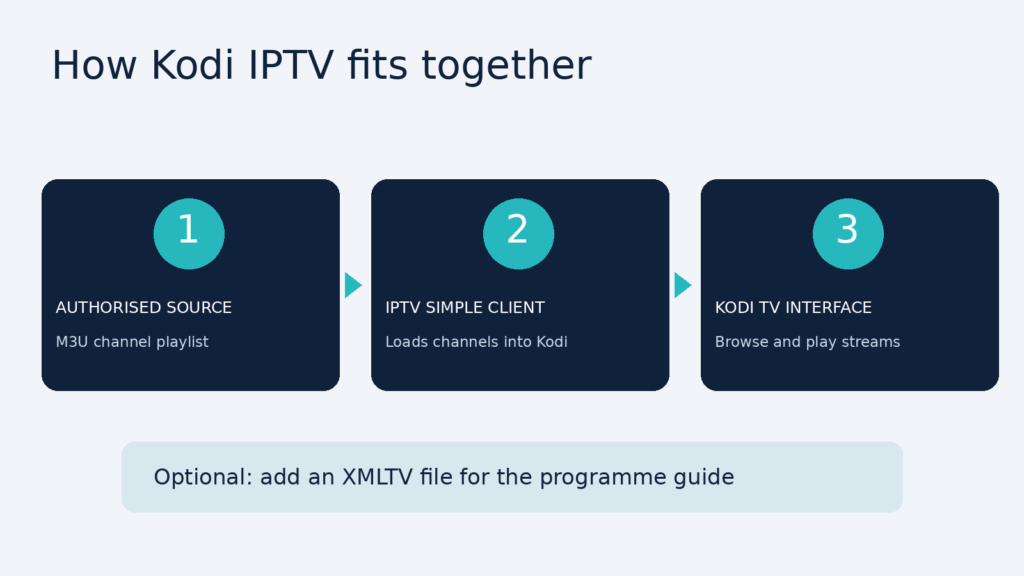
The setup has three main parts:
- Kodi provides the interface you use to browse and play media.
- IPTV Simple Client imports a compatible channel playlist.
- Your content source supplies the actual streams, with an optional programme-guide file supplying scheduling information.
You can explore the software on the official Kodi website. The channels available to you depend on the source you configure, not on Kodi itself.
Why Use Kodi for IPTV in Australia?
Kodi can suit viewers who want to combine their existing media collection with compatible live television sources. Its interface supports organising TV shows and movies, while its add-on system allows users to customise their setup.
Keep Your Media in One Interface
Instead of treating your saved media and compatible live TV sources as entirely separate collections, Kodi lets you access them through the same media-centre interface.
Your available content still depends on what you own or are authorised to access.
Choose From Several Supported Platforms
Kodi offers versions for Windows, macOS, Linux, Android and other systems. Check the official Kodi download page to find the appropriate option for your device.
Add a Programme Guide
With a compatible XMLTV source, IPTV Simple Client can display programme listings alongside your channels. This makes it easier to see what is scheduled without relying on a separate guide.
The important limitation is compatibility. Installing Kodi does not automatically make every streaming service available inside it. A service needs to support an appropriate method of access.
What You Need Before Getting Started
For the IPTV Simple Client method described below, prepare:
- A device with Kodi installed.
- An internet connection for online streams.
- An M3U playlist file or URL from a source you are authorised to use.
- An optional XMLTV file or URL for programme listings.
An M3U playlist tells the add-on where to find your channels. XMLTV supplies the information used to display a programme guide, such as programme names and scheduled times.
Before subscribing to a service, ask whether it supports M3U playlists and permits playback through third-party players. Do not assume that a subscription will work with Kodi simply because it offers internet television.
How to Set Up Kodi IPTV Player
1. Download Kodi From the Official Website
Start with the official Kodi downloads and select your operating system. Follow the installation instructions for your device.
The official software does not include media content. After installation, you will need to add your own content or configure a compatible source.
2. Install IPTV Simple Client
In Kodi, open the following menu:
Settings → Add-ons → Install from repository → PVR clients → IPTV Simple Client → Install
Exact availability and menu presentation can vary by platform and installation.
For installation details, visit the official IPTV Simple Client documentation.
3. Add Your M3U Playlist
Open the add-on’s configuration settings.
Select a local file location if you have downloaded an M3U file, or a remote location if your source provides a playlist URL. Enter the appropriate file path or address.
Depending on the add-on version, you may first need to create an add-on configuration.
The IPTV Simple Client project documentation explains its configuration options, including support for multiple M3U and XMLTV pairs.
4. Configure the Programme Guide
If your source provides an XMLTV guide, enter its local path or remote URL in the guide settings. This allows the add-on to use programme information alongside your channels.
Guide matching matters. The identifiers in the channel playlist need to correspond with the guide’s channel identifiers for listings to map correctly.
The Kodi Wiki configuration guide explains how these settings work together.
5. Enable the Add-on and Browse Your Channels
Save your settings and ensure the client is enabled. Once Kodi has loaded your channel data, use its television interface to browse your configured streams.
The available channels come from your playlist—not from Kodi itself.
Choosing Streaming Sources for Australia
Keep the player and the content service separate when evaluating your options. Kodi plays media, but it does not supply television channels or streaming subscriptions.
Before choosing a source, ask:
- Does it clearly identify the business providing the service?
- Does it explain which content you may access in Australia?
- Does it permit use with Kodi or another third-party player?
- Does it supply the M3U playlist required for this setup?
- Are its pricing, cancellation terms and support details clear?
Avoid treating a large channel count as proof of quality or permission to distribute those channels. Choose sources you are authorised to access rather than installing an unknown playlist simply because it promises premium content.
Common Kodi IPTV Setup Problems
Your Playlist Will Not Load
Check that the add-on is configured for the correct source type. A local file and a remote URL use different settings, so the selected option must match the information you have received.
Compare the entry with the details supplied by your provider. Avoid sharing private playlist URLs in public support requests.
Channels Appear, but Programme Listings Do Not
Check whether you have configured an XMLTV source as well as the M3U playlist.
Next, check that the playlist’s channel identifiers match the identifiers used in the guide. A loaded playlist does not automatically mean that programme listings have also been configured.
You Expected Shows to Be Included Automatically
Kodi does not come with a streaming subscription or a built-in content library.
You need to supply your own media or configure an appropriate third-party source. Installing the player alone will not add Australian channels or premium programming.
Frequently Asked Questions
Is Kodi IPTV Player Free?
Kodi is free. However, a separate service supplying your content may charge its own subscription fee. Kodi does not include that content or subscription.
Does Kodi Include Australian TV Channels?
No. Kodi does not provide channels or media sources. Australian channel availability depends on the source you configure and the access it provides.
Do I Need an M3U Playlist?
For the IPTV Simple Client setup covered here, an M3U playlist supplies the channel sources. An XMLTV guide is optional and adds programme information.
Can I Use Kodi Without an IPTV Subscription?
Yes. Kodi also plays media from your own collection, so IPTV is only one way to use it. You can use Kodi to organise and play your own movies, television shows, music and other supported media.
Final Thoughts
Kodi offers Australian viewers a flexible way to organise personal media and access compatible IPTV sources through one interface.
Start with the official software, install IPTV Simple Client and add a playlist from a source you are authorised to use. If programme listings are available, connect an XMLTV guide to make browsing your channels more convenient.
The key is to remember what Kodi provides: the player and interface. Your chosen content source determines what you can watch.